What is Apple Books?
Apple Books (formerly iBooks) is the ebook reader that comes pre-installed on every Mac, iPhone, and iPad. It’s tightly integrated with the Apple ecosystem — you can buy books from the Book Store, read them across devices, and your purchases sync automatically through iCloud.
For books you buy from Apple, it works well. The reading experience is polished, syncing is seamless, and everything just connects.
The friction starts when you bring your own books.
The problem: Apple Books is a store first
Apple Books is designed to sell you ebooks. That’s not a criticism — it’s a business model. But it means the app is optimized for purchased content, not for managing a personal ebook library.
If you’ve downloaded free EPUBs from Standard Ebooks or Internet Archive, converted books from other formats, or built a collection outside of Apple’s ecosystem, you’ll run into the same set of limitations:
- Limited format support. Apple Books reads EPUB and PDF. That’s it. If you have MOBI, AZW, AZW3, or KEPUB files — common formats from Amazon, Kobo, or other sources — you need to convert them yourself before Apple Books will open them.
- Sideloading is basic. You can drag an EPUB into Apple Books on Mac or use “Open In” on iOS, but that’s where it ends. There’s no bulk import with automatic metadata lookup, no cover fetching, and no way to fix incorrect book information after import.
- No metadata management. Sideloaded books often show up with missing covers, wrong titles, or no author information. Apple Books doesn’t look up metadata or let you edit it. What you imported is what you get.
- Basic library organization. You can create Collections, but there are no shelves, no tags, no smart filtering. With a large personal library, finding a specific book means scrolling or searching.
- No free book discovery. Apple Books has the Book Store for paid content. It doesn’t help you discover the thousands of free, public domain classics available from Standard Ebooks, Internet Archive, and other sources.
- No highlight export. You can highlight text and add notes, but there’s no way to export them to Markdown, JSON, or any other format for use outside the app.
None of this matters if you only read books bought from the Book Store. But if your ebook library extends beyond Apple’s store, these gaps add up.
Feature comparison
| Feature | BookShelves | Apple Books |
|---|---|---|
| Platforms | macOS, iOS, iPadOS | macOS, iOS, iPadOS |
| EPUB | Yes | Yes |
| Yes | Yes | |
| MOBI / AZW / AZW3 | Yes — auto-converted on import | No |
| KEPUB | Yes — auto-converted on import | No |
| Import | Drag-and-drop, file picker, bulk import | Drag-and-drop (Mac), Open In (iOS) |
| Metadata lookup | Automatic on import (title, author, cover) | No — shows whatever the file contains |
| Library organization | Shelves, grid/list views, sort by multiple fields | Collections only |
| iCloud sync | Yes — books, position, bookmarks, highlights (Pro) | Yes — for purchases; limited for sideloaded books |
| Reading customization | Themes, fonts, line spacing, margins | Themes, fonts, some spacing options |
| Highlights & notes | Yes — multi-color, synced | Yes — multi-color, synced |
| Export highlights | Yes — Markdown, JSON, CSV (Pro) | No |
| Free book catalogs | Built-in (Standard Ebooks, Internet Archive) | No — Book Store only |
| Multi-window (macOS) | Yes — open multiple books side-by-side | Limited |
| Email to device | Kindle, Kobo, reMarkable (Pro) | No |
| OPDS server | Yes — share library on local network (Pro) | No |
| Full-text search | Yes | Yes |
| Book Store | No | Yes — Apple's built-in store |
| Audiobooks | No | Yes |
| Price | Free (optional $2.99 one-time Pro upgrade) | Free (included with macOS/iOS) |
What BookShelves does differently
Imports more formats
BookShelves accepts EPUB, PDF, MOBI, AZW, AZW3, and KEPUB files. Kindle and Kobo formats are automatically converted to EPUB on import — just drop them in and BookShelves handles the rest. No external conversion tools, no command-line utilities, no intermediate steps.
Apple Books only accepts EPUB and PDF. If you have MOBI, AZW, or KEPUB files, you’d need to convert them yourself — usually through calibre or an online converter — before Apple Books will open them.
Actually manages your library
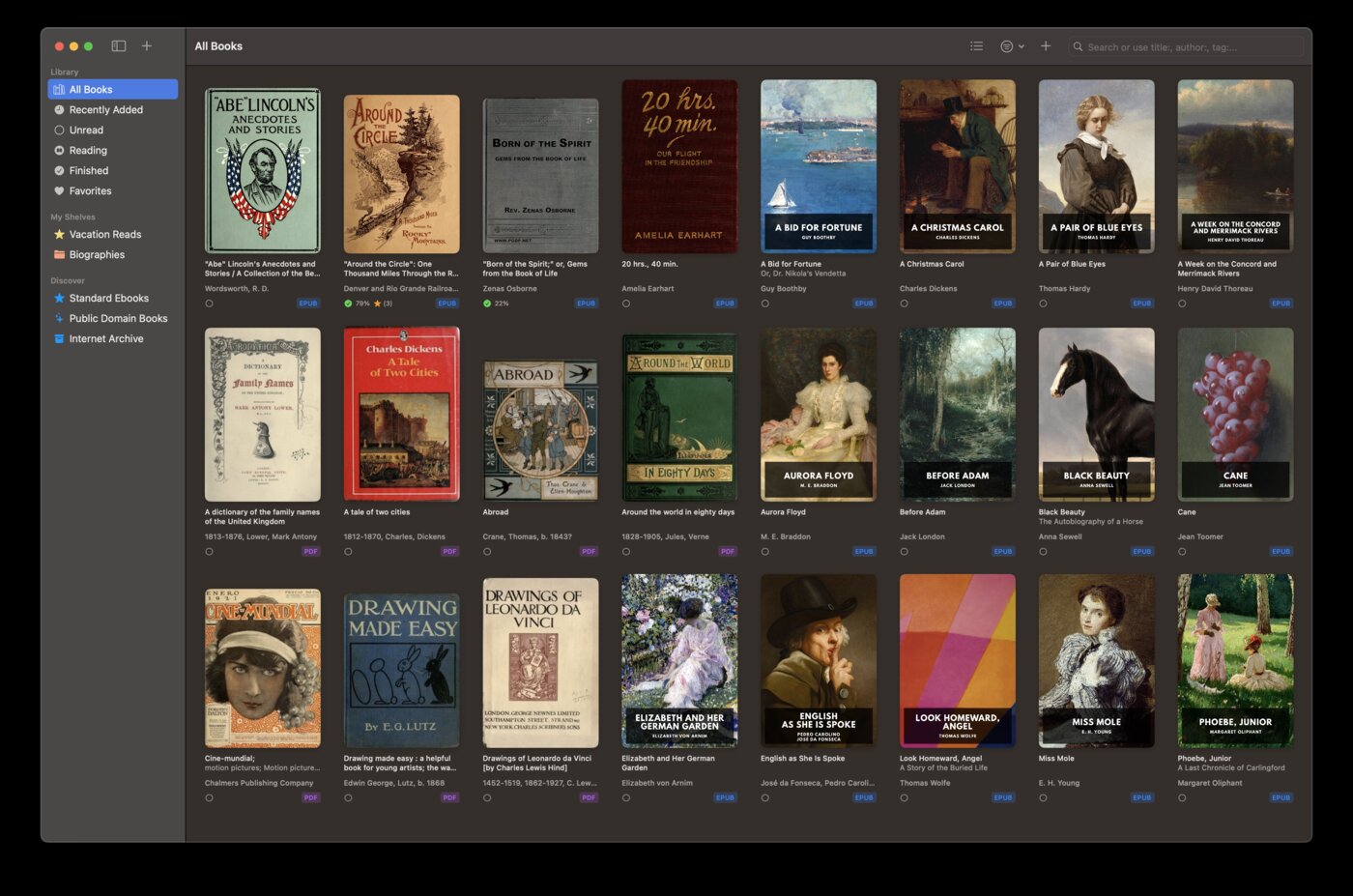
Import books by dragging files onto the window or using the file picker. BookShelves automatically looks up metadata — title, author, cover art — from online sources. Books with missing or incorrect information get fixed automatically.
Organize your collection with custom shelves, sort by title, author, or date added, and browse in grid or list view. It’s a proper library manager, not just a reader with a bookshelf skin.
Discover thousands of free books
BookShelves has a built-in catalog with thousands of free, public domain classics from Standard Ebooks (beautifully typeset editions) and Internet Archive. Browse by subject, search by author, and download directly into your library with one tap.
Apple Books directs you to the Book Store. Finding free public domain books there means sorting through a mix of free promotional titles, public domain editions of varying quality, and paid content.
Multi-window reading on Mac
Open multiple books side-by-side in separate macOS windows. Useful for comparing translations, reading with a reference text, or keeping notes open alongside your book.
Export your highlights
Highlighted something worth keeping? Export all your highlights and annotations to Markdown, JSON, or CSV. Use them in your notes app, research documents, or blog posts.
Apple Books highlights stay locked inside Apple Books. There’s no built-in export.
Send books to other devices
Use Email to Device to send books directly to your Kindle, Kobo, or reMarkable. Set up once, then send any book with a single tap.
Where Apple Books is the better choice
You buy most of your books from Apple
If the Book Store is your primary source for ebooks, Apple Books is the obvious choice. Purchased books sync seamlessly, you can pre-order titles, and everything integrates with your Apple ID.
You listen to audiobooks
Apple Books supports audiobooks with a dedicated player, bookmarking, and speed controls. BookShelves is an ebook reader only — it doesn’t handle audio content.
You want zero setup
Apple Books is already on your device. There’s nothing to download, nothing to configure, nothing to learn. If your needs are simple — buy a book, read it — Apple Books requires the least effort.
Using both together
You don’t have to pick one. Many readers use Apple Books for purchases and BookShelves for everything else — sideloaded EPUBs, free classics, MOBI files from other sources, and books they want to organize properly.
Both apps store books independently, so there are no conflicts. If you want to move sideloaded books from Apple Books to BookShelves, just re-import the original files — drag and drop them into BookShelves, and metadata will be fetched automatically.